“Can You?”
I had Opus 5.5 one-shot a prompt “make a piece of music that feels like a machine learning to play music and video to go along with it”.
I provided a few tools. LilyPond, which turns plain text into sheet music and MIDI, Blender 5.2, and Runpod with a $20 GPU budget which it used to render the 3D piano. It additionally used FluidSynth to play the notes with a piano sound, and Python code to draw the 2D video without any guidance.
This post covers what Claude did to keep all three in sync. Hint: code, which continues to prove itself as a substrate for solving problems across more domains than people once imagined.
Keeping Three Mediums in Sync
The most interesting part for me was syncing music, video, and render and I was particularly impressed with keeping the 3D piano exactly in sync with the real notes. Blender renders images one frame at a time, with no sound to follow, so every key has to go down on exactly the right frame from the notes alone.
Here’s an example of the main theme, with a piano below it to show that the video matches the actual notes. Press play and the keyboard lights up with the clip, then press your turn and play it yourself and prove to yourself it is playing the actual notes.
- B
- C♯
- D
- F♯
- E
- D
- B
Bars 17 and 18, where the melody first appears. The keyboard lights up from the same list of notes that moved the keys in the clip.
JSON is King
The approach Claude took was to first create the score, then turn the score into one list of notes and built the 2D video and 3d render from it. Lets take a look below, here’s the theme’s first note, a B, from the score to the final video:
bWhich note: B. Notes are named with the letters A to G.'Which B: every octave has one, and the mark picks the one just above middle C.4.How long: 4 is a quarter note, one beat, and the dot adds half a beat.The model writes every note of the score as text like this. This is the first note of the theme. Computers number a piano's keys from left to right, with middle C at 60, so this B is key 71.
"notes": [ …
  [35.8438, 36.0, 61, 72, 1, 1, 16, 0.0],
  [36.0, 36.1562, 47, 72, 2, 0, 17, 0.0],
  [36.0, 36.9375, 71, 72, 1, 1, 17, 0.0],
  [36.1562, 36.3125, 54, 72, 2, 0, 17, 0.0], … ]
Code turns the score into one list of notes, one line each. It saves the list as this JSON file for Blender and the video, and as MIDI for the synthesizer. The first three numbers do the syncing: when the note starts, when it ends, and which key plays it.
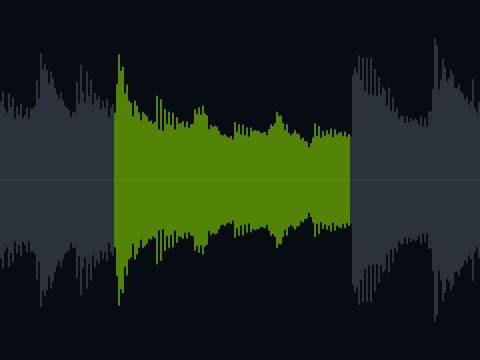
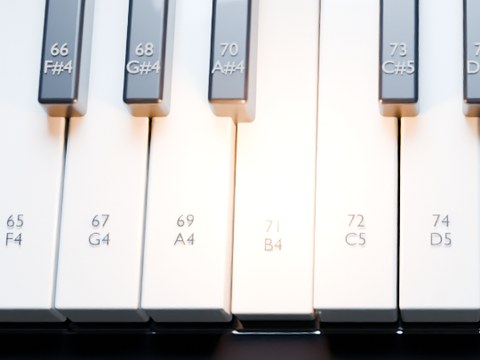
key_71. It goes down and lights up from start to end.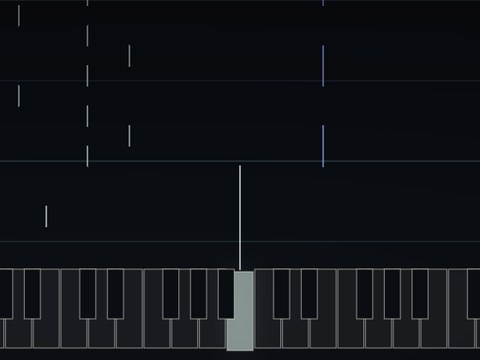
All three read the same line. In the final video, the B sounds, key 71 goes down, and its line rises at the same moment.
A Note Is a Run of Frames
Every note goes through the same steps. The 3D animation shows 24 still pictures every second, and each picture is a frame. A note covers every frame while its key is down, so the first B covers 24 frames.
Here are all 136 frames of the close-up shot, stacked in 3D. Drag to turn the stack, and move the slider or press Play to go through the frames:
The Loop That Presses the Keys
This loop moves the 3D piano’s keys in Blender. For every frame, it goes through the list and presses the keys whose notes are sounding. The drawn video runs the same loop at 30 frames a second, and the synthesizer plays the same list, so all three line up. Step through it, and the stack above follows along:
1for frame in range(1, total_frames + 1):2 time = shot_start + (frame - 1) / 243 pressed = {key: 0 for key in keys_used}4 for note in notes:5 amount = press_amount(note, time)6 if amount > pressed[note.key]:7 pressed[note.key] = amount8 for key, amount in pressed.items():9 KEYS[key].rotation = FULL_PRESS * amount10 KEYS[key].keyframe_insert(frame)
- frame
- time
- note
- key
- amount
- pressed
Line 10 saves each key’s position for the frame. Blender calls a saved position a keyframe, and plays the keyframes back in order as the animation.
The Final Product
The final product is the film at the top of this post. Here’s the code building its 3D piano, from a wireframe to the finished look:
Findings
- A shared source of truth did the syncing. Everything goes through one list of notes, saved as JSON for Blender and the video and as MIDI for the synthesizer. Nothing lines the three up after the fact.
- The model used existing tools exceeding well. It connected LilyPond, FluidSynth and Blender with code instead of building anything new.
- The visuals took the most iteration. The music only needed small tweaks at the beginning and the end, but the video took several rounds of notes on camera angles, what to show, and what to cut.
Full score here.